
Breadcrumbs: what they are and what they are for
By Tiago CostaUpdated on July 2, 2026
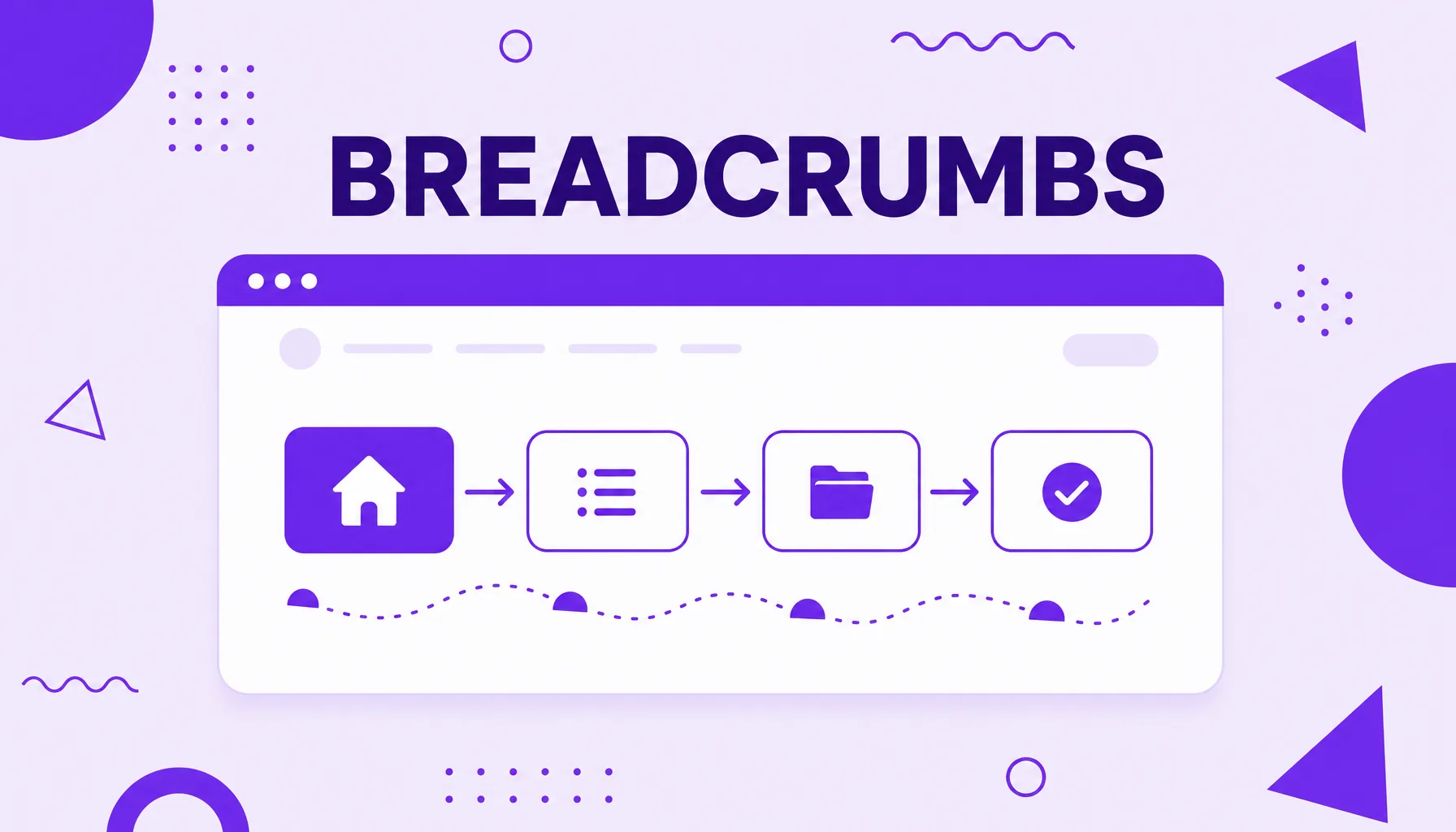
Breadcrumbs (the navigation trail) are the line of links that shows a page's position in the site hierarchy. They serve to:
- orient the visitor about where they are;
- let them jump back to previous categories with one click;
- reinforce the site structure for search engines;
- appear as a navigation path in the search result.
What breadcrumbs (the navigation trail) are
Breadcrumbs, also called the navigation trail, are a line of links displayed near the top of a page that shows the path to it within the site. A common example: Home > Blog > SEO > Breadcrumbs. Every item except the last is clickable and takes you back to the matching level.
The name comes from the tale of Hansel and Gretel, in which the children drop breadcrumbs to find their way back. The idea is the same: the trail marks where the user came from and how they can return. It is a small element on the screen, but it plays a big role in orientation, especially on large sites with many categories and subcategories.
Types of breadcrumbs
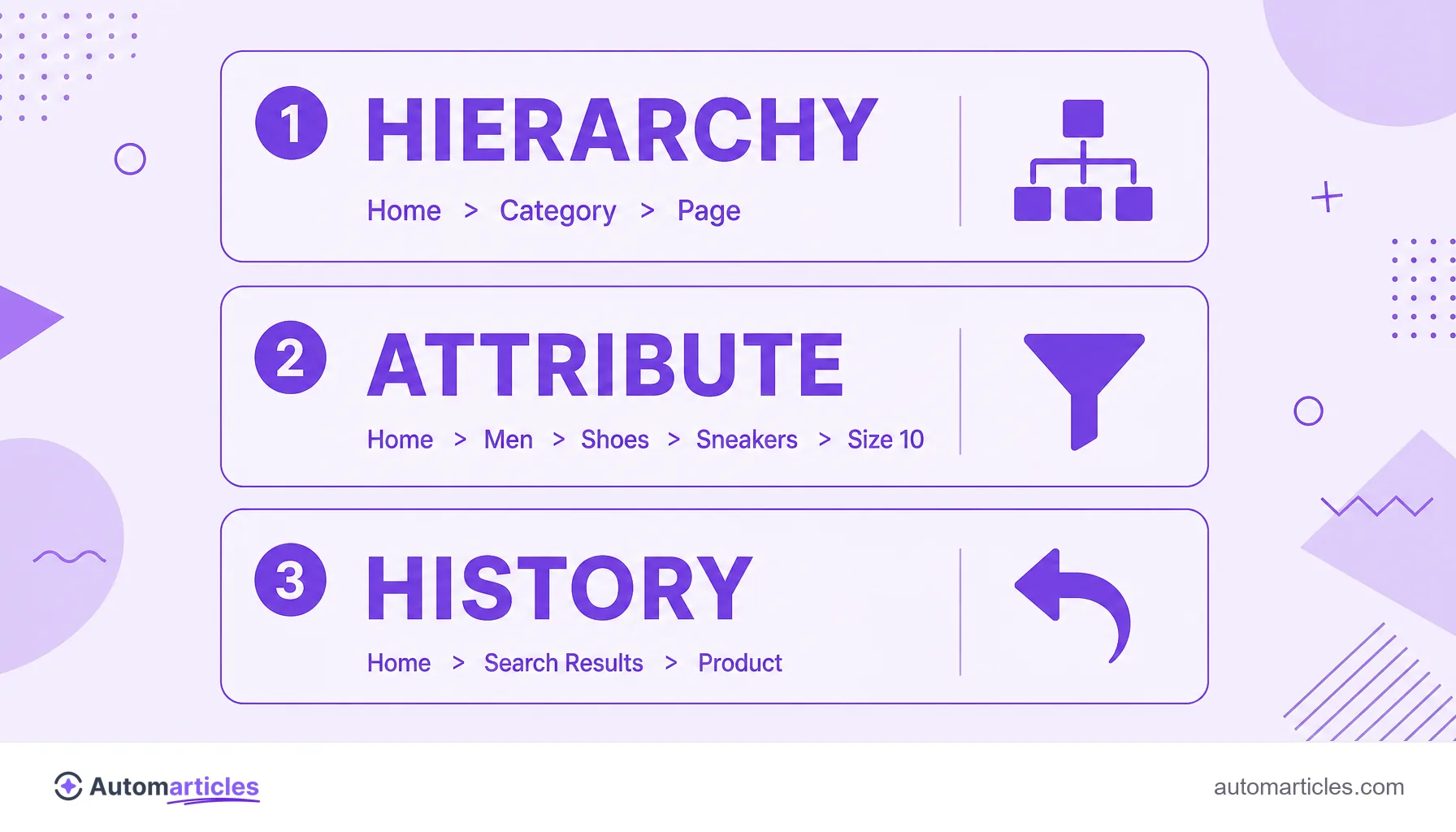
Not every breadcrumb works the same way. There are three main models, and understanding the difference helps you choose the right one for each site:
| Type | How it works |
|---|---|
| Hierarchy based | Shows the page's position in the site structure (Home > Category > Subcategory). It is the most common and the most useful for SEO. |
| Attribute based | Common in e-commerce, it reflects the applied filters (Laptops > Brand > up to 16 inches). |
| History based | Reproduces the path the user took, like a back button (Previous > Current page). |
On most blogs and corporate sites, the hierarchy model does the job. On online stores, the best practice is to combine more than one type. According to a study by the Baymard Institute, 68% of the e-commerce sites analyzed have sub-par breadcrumb implementations, usually by offering only one type of trail when the user would need more than one to navigate smoothly.
What they are for: UX and SEO benefits
Breadcrumbs deliver value on two fronts at once. For the user experience, they:
- Locate the visitor: they answer the question where am I within the site effortlessly.
- Ease navigation: they let you move up a level with one click, without relying on the browser's back button.
- Reduce the bounce rate: people arriving from an external search find paths to explore more pages instead of leaving.
For SEO, the gains come from structure. The trail creates a coherent web of internal links that helps the search engine understand the relationship between pages and distribute relevance. It also improves the scannability of the top of the page, making the context clear right away. And, as we will see, it can even appear in the search result itself.
Breadcrumbs and Google: the path in the result
When properly marked up, breadcrumbs leave your page and appear on the SERP. Instead of the raw URL, Google displays the navigation path below the result title, something like site.com > blog > seo. That format is more readable, gives context before the click and usually improves the click-through rate.
For this to happen, the trail needs to be described with structured data. The specific markup for this purpose is the BreadcrumbList type, applied through schema markup, which tells the search engine each item in the path and the order between them. Keep in mind that breadcrumbs differ from sitelinks: while the trail shows the hierarchy of a single page, sitelinks are extra links to several sections of the site displayed below the main result.

How to implement breadcrumbs on your site
Putting a navigation trail live is simpler than it looks. The basic path involves a few steps:
- Define the hierarchy: map the site structure into logical levels (Home, category, subcategory, page) before coding anything.
- Position it at the top: show the trail above the main title (H1), in a discreet size, to orient without competing with the content.
- Make the items clickable: every level except the current page should be a working link that leads to the right level.
- Add the structured data: include the BreadcrumbList markup so the path has a chance of appearing in the search result.
- Align it with the URL: the trail should reflect the folder structure and the page's slug, keeping the consistency between what the user sees and the address.
Most CMS and e-commerce platforms offer ready-made breadcrumbs or a plugin, many already with the structured data built in. In those cases, the work is more about configuring the hierarchy than coding from scratch.
Best practices and common mistakes
A poorly made trail hurts more than it helps. To get it right, follow a few simple principles:
- Do not replace the main menu: the breadcrumb complements navigation, it is not the site menu.
- Keep the current page unlinked: the last item in the trail indicates where you are and should not be clickable.
- Use clear labels: the category names should be short and descriptive, the same ones that appear across the rest of the site.
- Be careful on mobile: on small screens, a long trail can wrap onto several lines; shorten it or show only the previous level when needed.
- Avoid trails that are too deep: too many levels confuse; if the hierarchy is long, rethink the architecture instead of stacking categories.
Well applied, breadcrumbs are one of those details that go unnoticed when they work and are missed when they disappear. They cost little to implement and improve, at the same time, the experience of those navigating and the reading the search engine makes of your site.